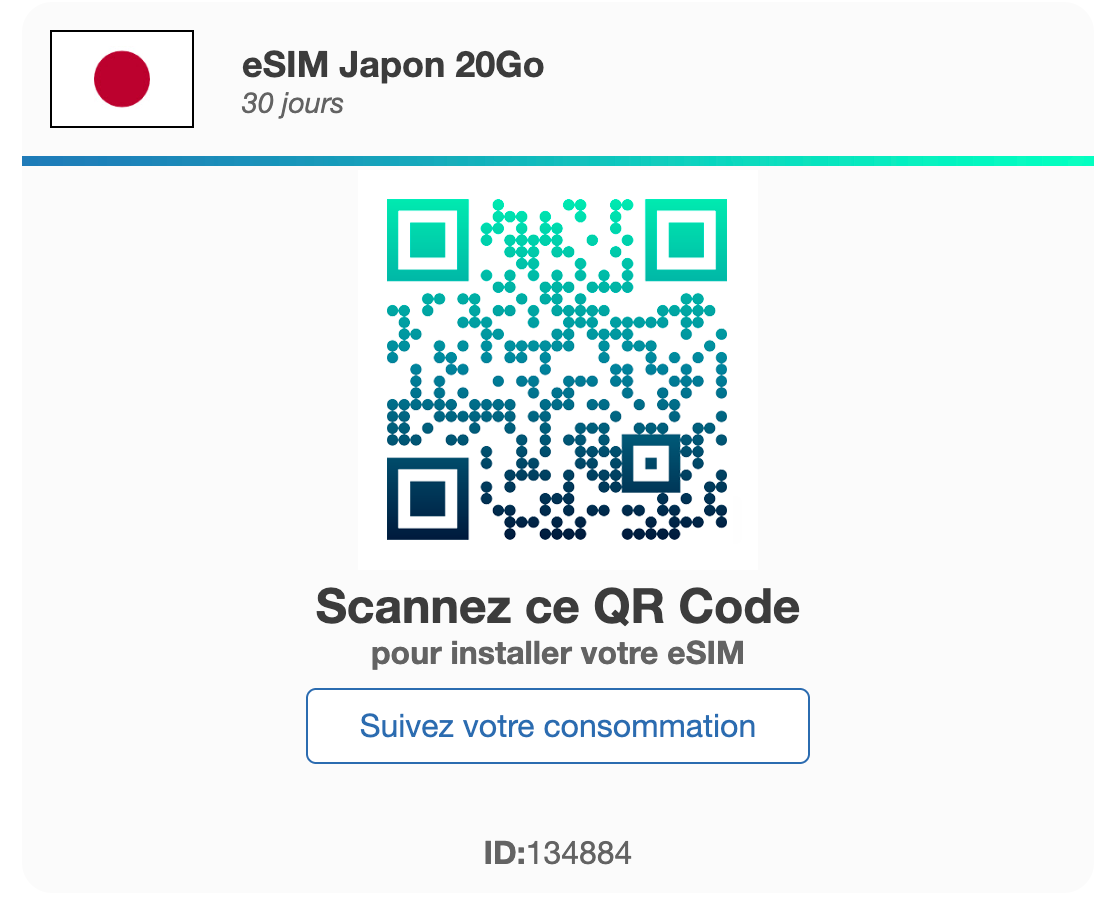
You’ve just purchased an international mobile plan from simpleSIM for your upcoming trip. Congratulations, you’ll be able to stay connected as soon as you arrive. You open your inbox and find your order confirmation with a QR code to scan.
This is where the classic problem arises: how do you scan a QR code displayed on the screen of the phone you are holding in your hands?
This is a common situation our customers encounter. Don’t panic, there are several very simple methods to set up your eSIM without needing a second device. Furthermore, simpleSIM has recently added quick installation links to make things even easier.
Here is our complete, step-by-step guide to installing your eSIM on iPhone or Android.
Method 1: Quick installation via the direct link (The recommended method)
To solve the single-screen problem, we’ve integrated quick installation buttons directly into the simpleSIM interface. This is by far the fastest and most reliable method.
How do I access it?
- Log in to your simpleSIM customer area and access your eSIM. If you haven’t created an account, click on the link in the email containing your QR code: “Track your usage”.
- Click on the Details button for your eSIM, in the top right corner.
- Locate the Quick Installation section (visible in the image below).
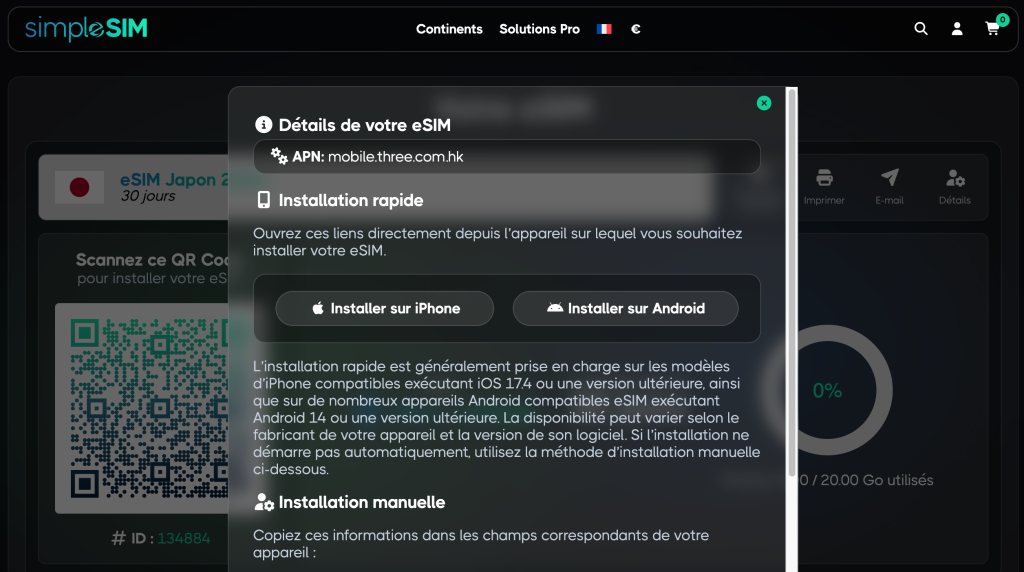
- Open this link directly from the smartphone on which you wish to install your eSIM.
- Click on the button corresponding to your operating system:
- Install on iPhone (if you are using an Apple device)
- Install on Android (if you are using a Samsung, Google Pixel, Xiaomi, etc. device)
The prerequisites of this method
This one-click automatic installation technology depends on the software versions of your devices:
- On iPhone: Compatible with models that support eSIM and run on iOS 17.4 or later .
- On Android: Compatible with most recent smartphones equipped with Android 14 or later .
If your system is not up to date or the automatic installation does not start after clicking the button, simply proceed to one of the methods detailed below.
Method 2: Long press on the QR code (Specific to recent iPhones)
If you have a recent iPhone running iOS 17.4 or later, Apple has integrated a smart screen passcode recognition feature. It’s a little-known but extremely useful trick. To learn more about this integration, you can consult the official Apple Support guide on setting up an eSIM on your iPhone .
- Open the email containing your simpleSIM QR code from your iPhone’s Mail app (Apple’s native Mail app gives the best results).
- Clearly display the QR code image on the screen.
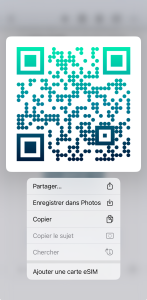
- Press and hold (keep your finger pressed for 2 seconds) directly on the QR code image.
- A context menu will then appear. Select the “Add an eSIM” option.
- The iOS setup assistant will launch automatically to complete the installation. Simply follow the confirmation steps.
Method 3: Importing the QR code from the photo gallery
If you don’t have access to automatic quick installation, you can cheat by tricking your phone into scanning a photo from its own gallery.
Procedure on iPhone
- Open the email containing the simpleSIM QR code and take a screenshot of this code.
- Go to your iPhone’s Settings , then select Cellular Data .
- Tap Add an eSIM .
- On the screen that activates the camera, tap the Use QR code option (if it is not already tapped).
- At the bottom of the scan screen, tap the image library icon or Open Photos .
- Select the screenshot of the QR code you just saved. The iOS system will analyze the image and automatically start the installation.
Procedure on Android (Samsung and Google Pixel)
- Open the email and take a screenshot of the QR code.
- Go to your phone’s settings .
- Navigate to the network management menu:
- On Samsung Galaxy: Connections> SIM card manager> Add an eSIM.
- On Google Pixel: Network and Internet> SIMs (click the + button next to the network).
- Select Scan the operator’s QR code .
- When the camera opens, click on the icon representing an image or a photo gallery (usually located at the bottom or top of the scan screen).
- Select the QR code screenshot. The Android system will detect the activation profile and offer to install it.
Method 4: Using a second screen (The physical method)
If you are at home or in the office and have another connected device, this traditional method remains extremely reliable and eliminates any complex manipulation on your smartphone.
Possible options:
- Option A (Computer or Tablet): Open your email on your computer or tablet and view the email from simpleSIM. Take your smartphone, go to the eSIM settings, and then scan your computer screen directly with your phone’s camera.
- Option B (Print on paper): If you have a printer, print the email containing the simpleSIM QR code. You can then easily scan it as if it were a physical travel document.
Method 5: Manual entry of activation codes
If none of the previous methods work, or if you encounter a camera bug, each simpleSIM eSIM has a manual activation key in text format. Simply copy and paste this information.
Step 1: Retrieve the codes
In the details of your simpleSIM eSIM (accessible from your customer area or the email you received), you will find two essential pieces of information:
- The address of the SM-DP+ server (often a web address of the type
rsp.eu.simlessly.comor similar). - The activation code (a long string of letters and numbers).
Step 2: Configure the phone
On iPhone:
- Go to Settings > Cellular Data > Add eSIM.
- Choose Use a QR code .
- At the bottom of the scan screen, tap the blue link Enter details manually .
- Copy and paste the SM-DP+ server address and activation code into the corresponding fields. Leave the “Confirmation Code” field blank unless otherwise indicated.
On Android (Samsung, Pixel, etc.):
- Go to Settings > Connections > SIM card manager > Add an eSIM (or Network Internet SIMs).
- Launch the QR code scanner.
- Click on the Enter code manually or Enter activation code option at the bottom of the screen.
- Enter the server address and activation code received from simpleSIM.
After installation: The 4 essential settings to connect
Many users believe that installing an eSIM profile is enough to get the internet working. This is a mistake that accounts for 80% of the requests received by our customer service. To ensure your internet connection works as soon as you arrive at your destination, you must complete these four steps in your settings.
1. Activate the eSIM line
Your phone needs to know that you want to use this virtual SIM card.
- On iPhone: Settings> Cellular data> Select your simpleSIM eSIM line and check Activate this line .
- On Android: Settings> Connections> SIM card manager> Tick the switch next to your simpleSIM eSIM to activate it.
2. Enable data roaming
Since simpleSIM is an international plan, you must allow your phone to connect to the networks of local partner operators.
- On iPhone: Settings> Cellular data> Select your eSIM> Activate the Data roaming option.
- On Android: Settings> Connections> Mobile networks> Activate the Data Roaming button.
3. Select the eSIM as the primary cellular data source
Your phone must use the simpleSIM plan for internet, and not your usual French plan, in order to avoid exorbitant out-of-plan charges.
- On iPhone: Settings> Cellular data> Cellular data> Select your simpleSIM eSIM.
- On Android: Settings> Connections> SIM card manager> Mobile data> Select your simpleSIM eSIM.
4. Disable automatic data switching (iPhone only)
To prevent your iPhone from surreptitiously reconnecting to your primary French SIM card if the partner network is temporarily weak:
- Go to Settings Cellular Data.
- Click on your main SIM line (your usual Orange, SFR, Free, Bouygues line).
- Disable the Allow cellular data switching option.
FAQ: Frequently asked questions about simpleSIM eSIM installation
Can I install my simpleSIM eSIM before going on a trip?
Yes, and we highly recommend it. You can install your eSIM profile the day before you leave, comfortably at home with a stable Wi-Fi connection. Installation doesn’t immediately activate the plan’s validity period. The plan will only start working when you select the eSIM as your active data line upon arrival at your destination.
Is it possible to scan the QR code multiple times?
No. For security reasons and due to telecom network technical specifications, an eSIM QR code is for single use only . Once the profile is downloaded to a smartphone, it is permanently linked to that device. If you accidentally delete the eSIM profile from your settings, you will not be able to reinstall it with the same QR code. In this case, contact simpleSIM support immediately.
Why does the installation fail with a network error message?
The most common cause is the lack of a stable internet connection during setup. Downloading an eSIM profile requires retrieving secure files from the operator’s servers. Make sure you are connected to a good quality Wi-Fi network before starting the process.
Is my smartphone compatible with eSIMs?
Most iPhones since the iPhone XR and XS (released in 2018) are eSIM compatible. For Android, compatibility is mainly limited to premium models (Samsung Galaxy S series since the S20, Google Pixel series since the Pixel 3). To check if your phone is compatible, dial*#06# on your dial pad. If you see a line labeled EID (Embedded Identity Document), your phone supports eSIM. For more information, you can consult our smartphone compatibility guide for eSIMs .